Object Alignment On a Total Launcher Page
Developing a page in a setup requires the positioning of multiple objects. The positioning can be performed manually by tap/hold/drag or by using the object's on-screen edit dialog. Of course, the easiest and quickest way is tap/hold/drag, and a very useful aid for properly positioning the object is the alignment tool.
When in Edit On mode and an object is selected, the Object Design Menu appears at the top and bottom of the screen.


The alignment icon is: 
The icon is inactiveby default. To activate it, just tap it.
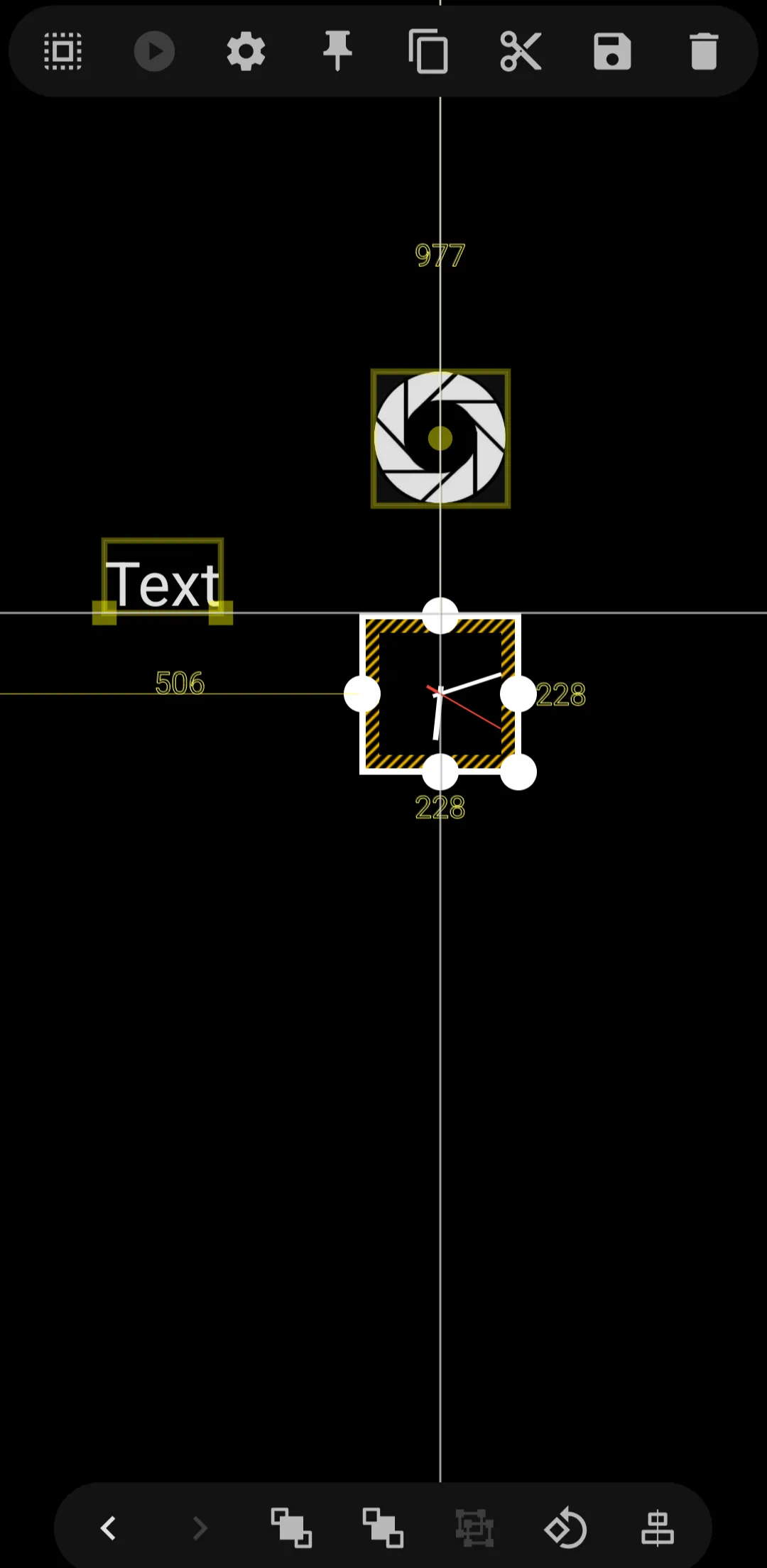
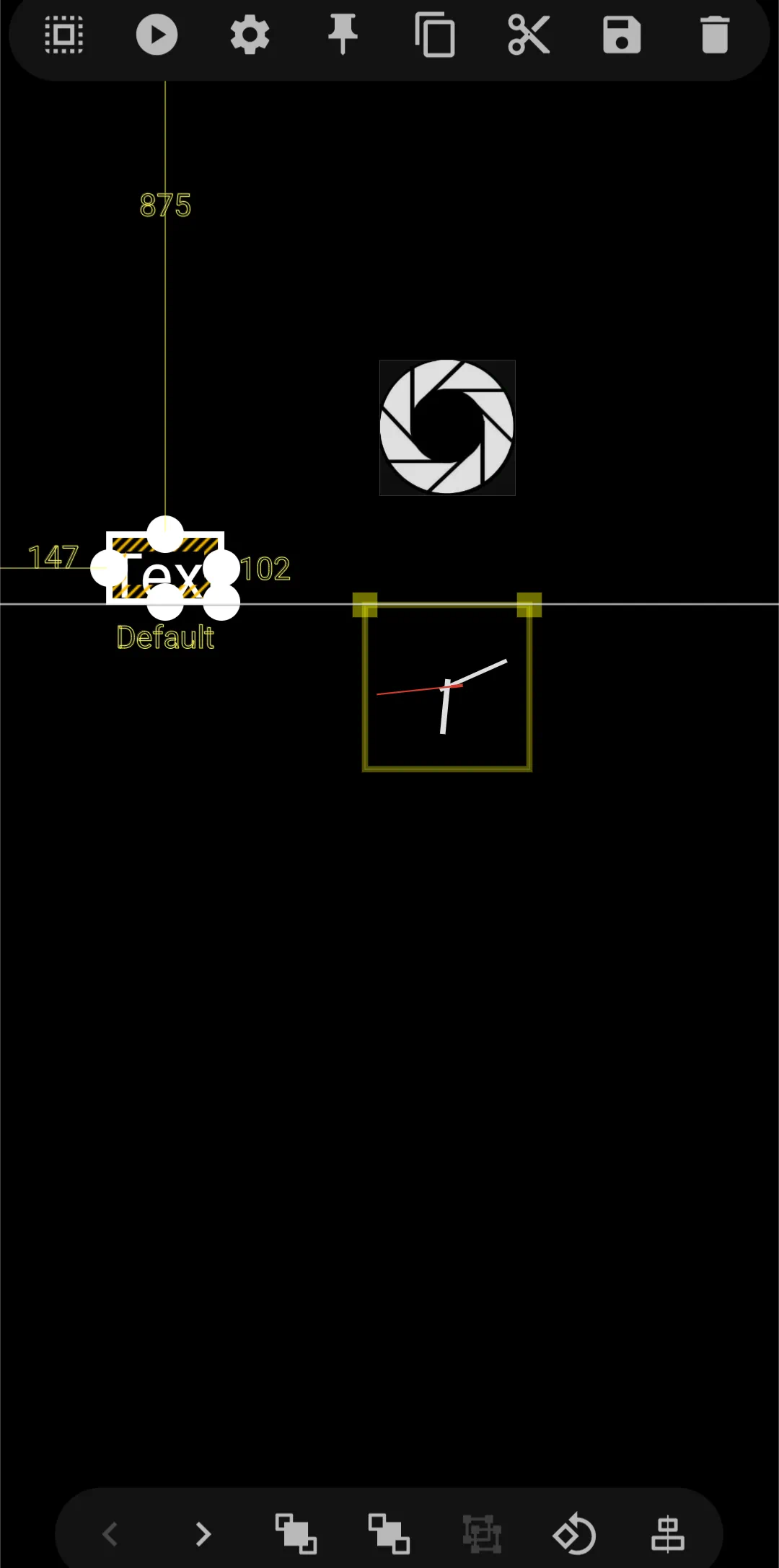
When more than one object is on the page and the alignment icon is active with an object selected, horizontal or vertical lines will intersect with objects in the area. The intensity of the line(s) increases when the two objects' alignment matches either
- each's left or right edge
- each's top or bottom edge
- each's center
Here is an example of 3 objects on a page positioned for interesection:
| Clock top edge to Text bottom edge Clock center to Shutter center | Text bottom edge to Clock top edge |
|---|---|
 |  |
Comments & Feedback
Toby Lancer is ready to help! Look for the Quick Help form:
► Desktop: left sidebar located near the bottom for Private to Admin
► Mobile: 3-bar menu at page top.
► Use the Discussion section below to share any experiences and communications with other Total Launcher users.
► Any Registered User can directly update this and any wiki page if desired.
Moderation: To keep the manual clean, all comments are held for appropriateness review. Preview any comment before submitting it. It will not be displayed after submission until it is reviewed. So, please, do not resubmit.
Formatting: If using any code snippets, place them inside code tags (e.g., 'code') using double single quotes (') before and after to keep them readable.
Be Kind: This is a community effort. Please keep feedback constructive and on topic.
~~DISCUSSION~~