Table of Contents
Total Launcher List Layout: Configuring Vertical Homescreen Menu
The List Layout provides specialized structural controls for organizing graphic objects and app shortcuts into a vertical scrolling sequence. Implementing this linear arrangement type is ideal for crafting highly functional sidebars, app drawers, or sequential menus within a custom setup. Configuring the precise number of viewable rows and mapping specific launch animations directly determines the overall navigational experience. The following section details exactly how to configure these unique linear parameters within the general options menu.
Unique List Options (General)
➡️ See this section to review common dialog options.
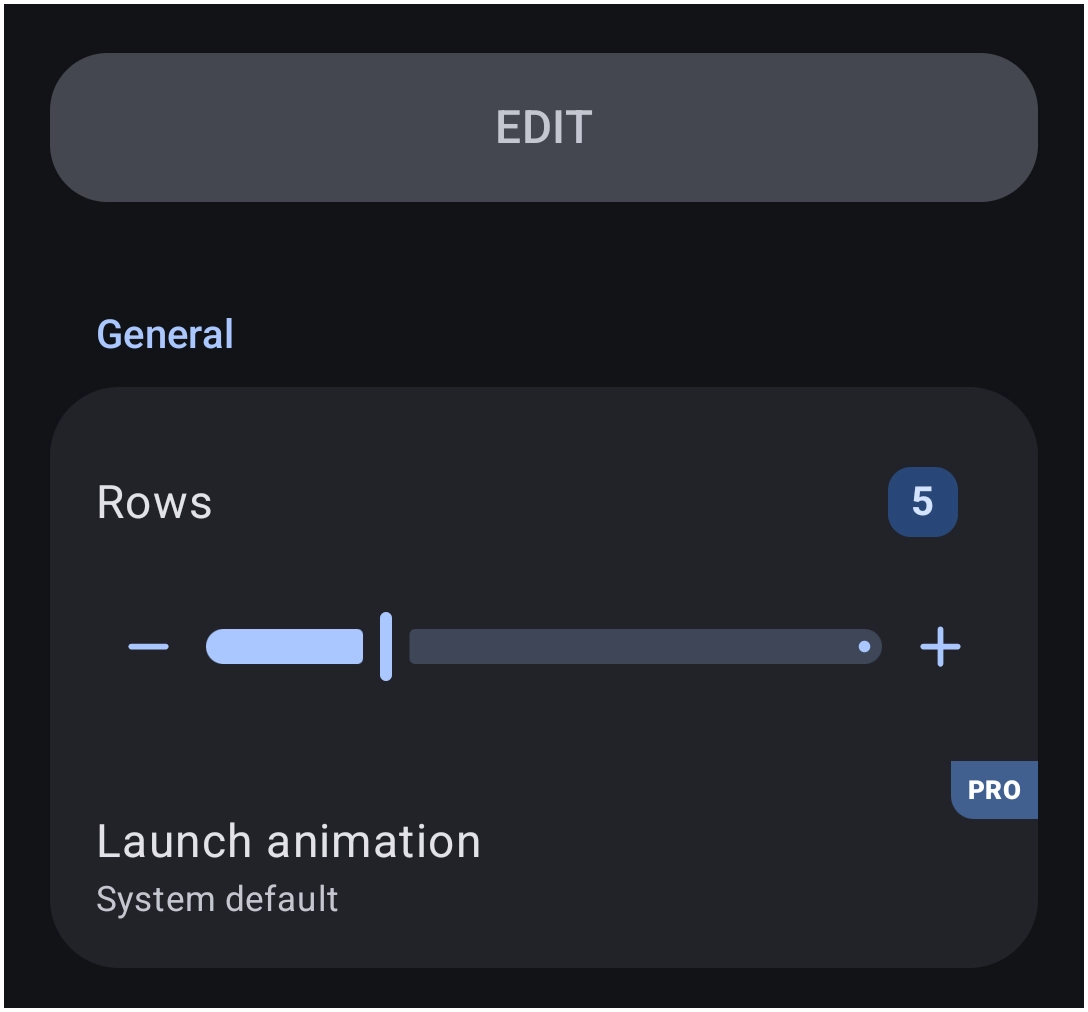
The General Options dialog controls the behavior unique to this layout type:
- List
- Rows: Defines the total number of horizontal rows available that are viewable within the list container. The range is
1to16. Columns are fixed at 1. Scrolling (vertically) will display additional content beyond the set row number. - Launch animation: Sets the animation triggered when activating an item. See here for a complete review. Note that this selection requires the
PROversion upgrade.
Comments & Feedback
Toby Lancer is ready to help! Look for the Quick Help form:
► Desktop: left sidebar located near the bottom for Private to Admin
► Mobile: 3-bar menu at page top.
► Use the Discussion section below to share any experiences and communications with other Total Launcher users.
► Any Registered User can directly update this and any wiki page if desired.
Moderation: To keep the manual clean, all comments are held for appropriateness review. Preview any comment before submitting it. It will not be displayed after submission until it is reviewed. So, please, do not resubmit.
Formatting: If using any code snippets, place them inside code tags (e.g., 'code') using double single quotes (') before and after to keep them readable.
Be Kind: This is a community effort. Please keep feedback constructive and on topic.
~~DISCUSSION~~