Table of Contents
Backup Center
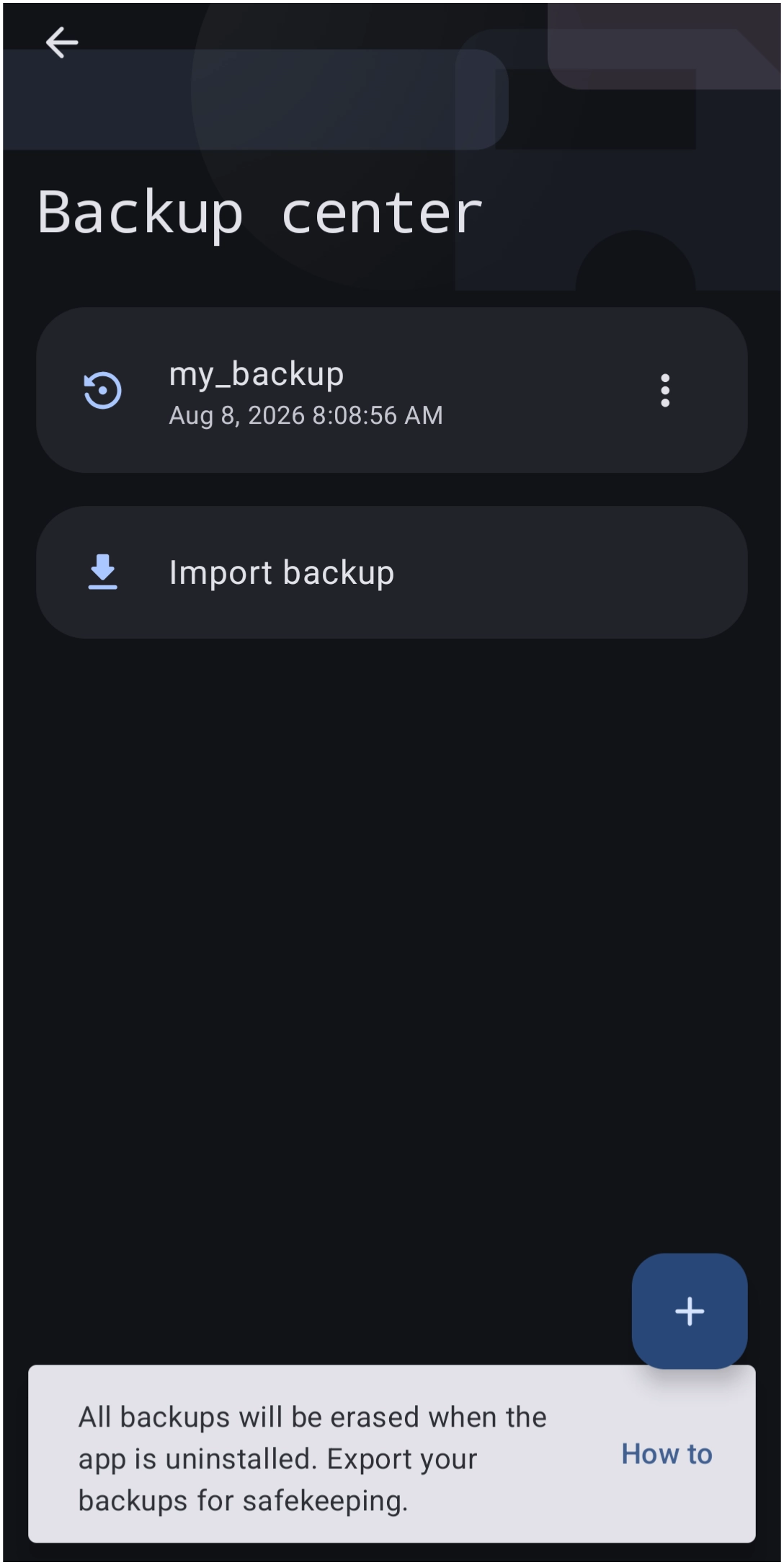
This represents the Backup Center dialog reached by Double Pinch or Tap > Launcher options > Backup center. Initially, no backups will be shown in the dialog, but it is critical to make one early in the installation/setup process.
Dialog selections are discussed below or next to the image. The image contains no navigation selections. To return to the previous page, swipe (right to left), use the browser's return arrow, or select the Backlink icon  from the right sidebar.
A description of the elements in the image is discussed below.
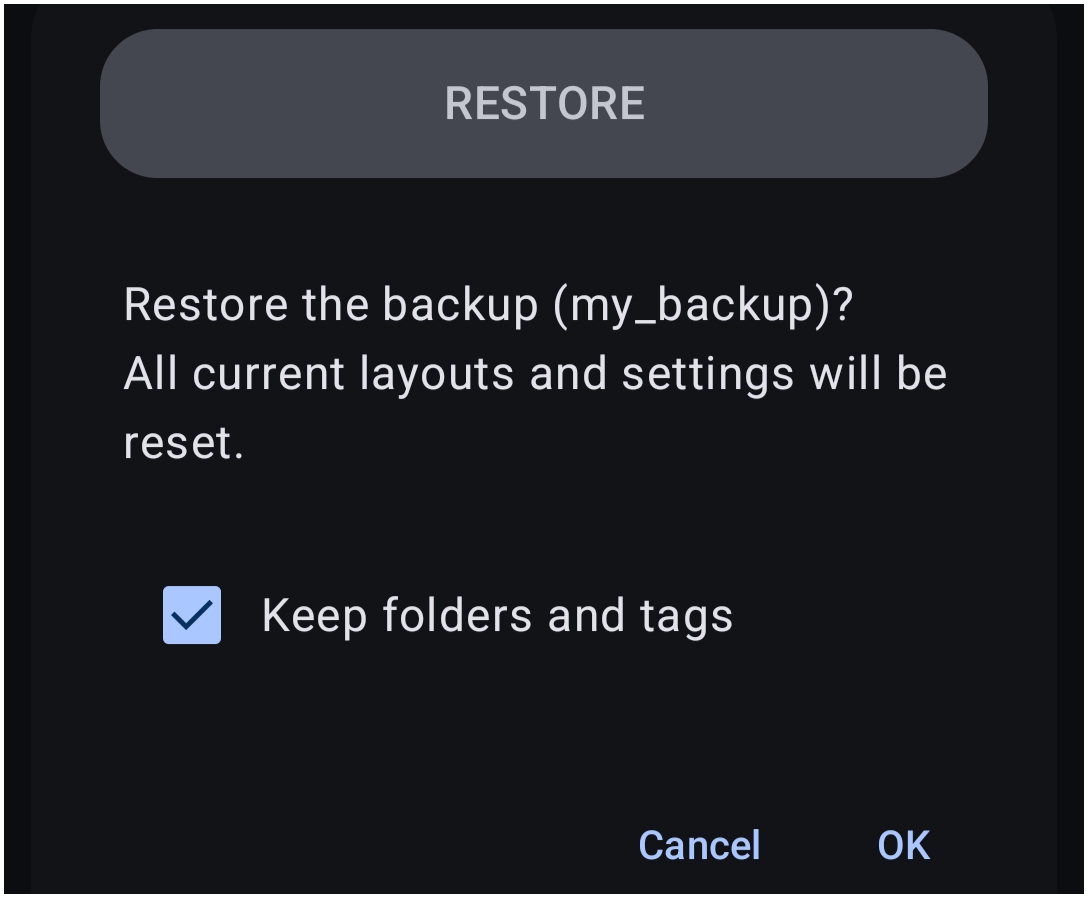
- Existing backup: The image shows a single, existing backup. Tapping the
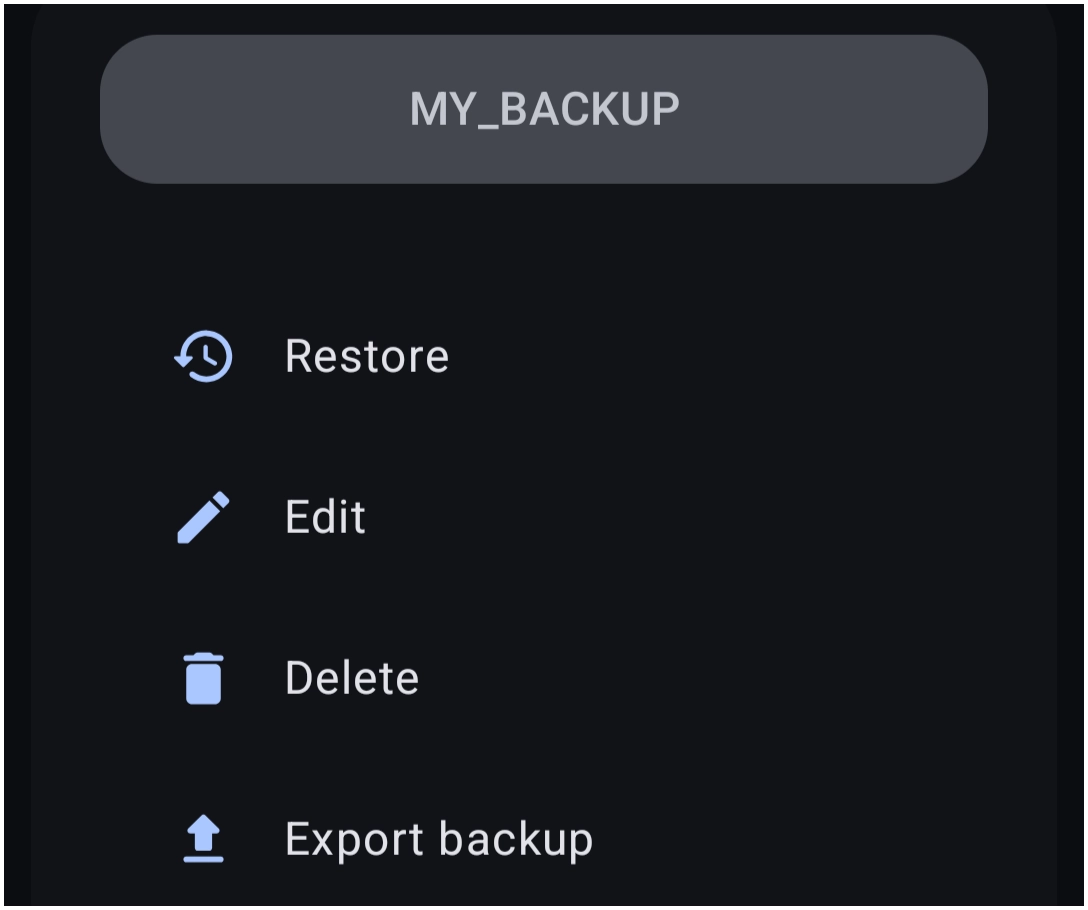
Title(my-backup) will open the restore dialog. - 3-dot menu: Next to any existing backups, this 3-dot menu reveals the dialog (seen here) for multiple backup options.
- Restore: This is the same option discussed above (tapping the backup name).
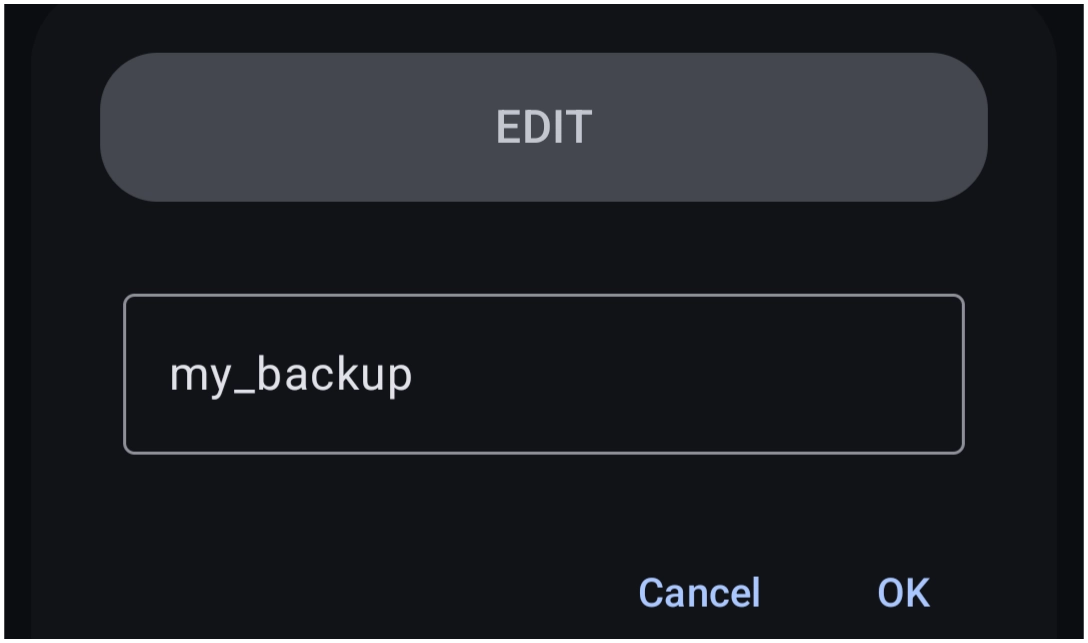
- Edit: Allow the editing of the backup title as show here. . All characters must be lowercase. Spaces and special characters are allowed.
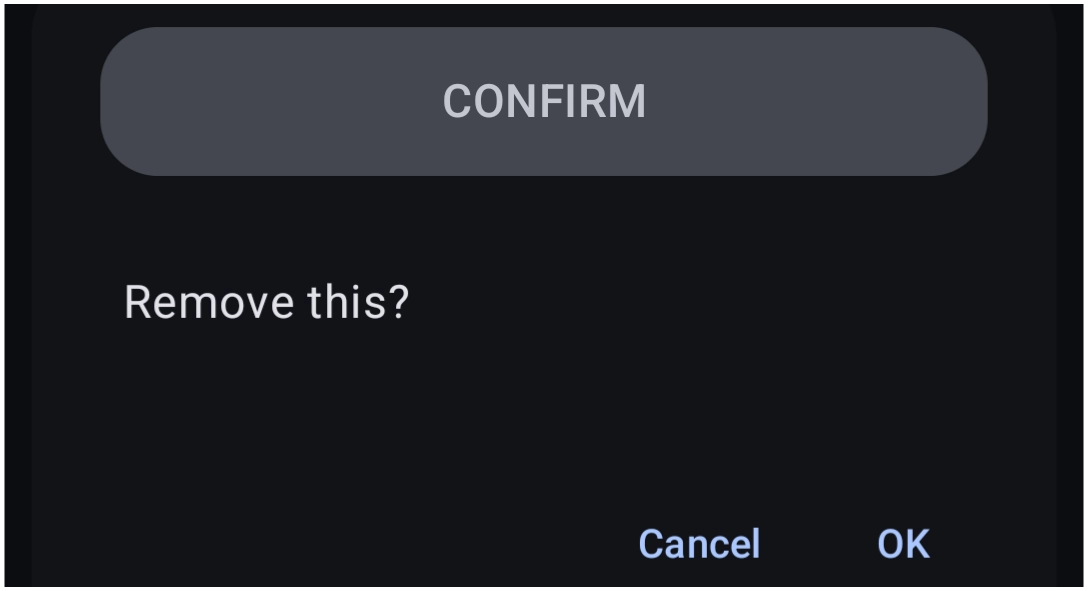
- Delete: Removes the backup from the list and deletes it from the device with this confirmation.
- Export backup: Opens the device file manager to navigate to the device location or cloud (file manager compatible) for storing the backup.
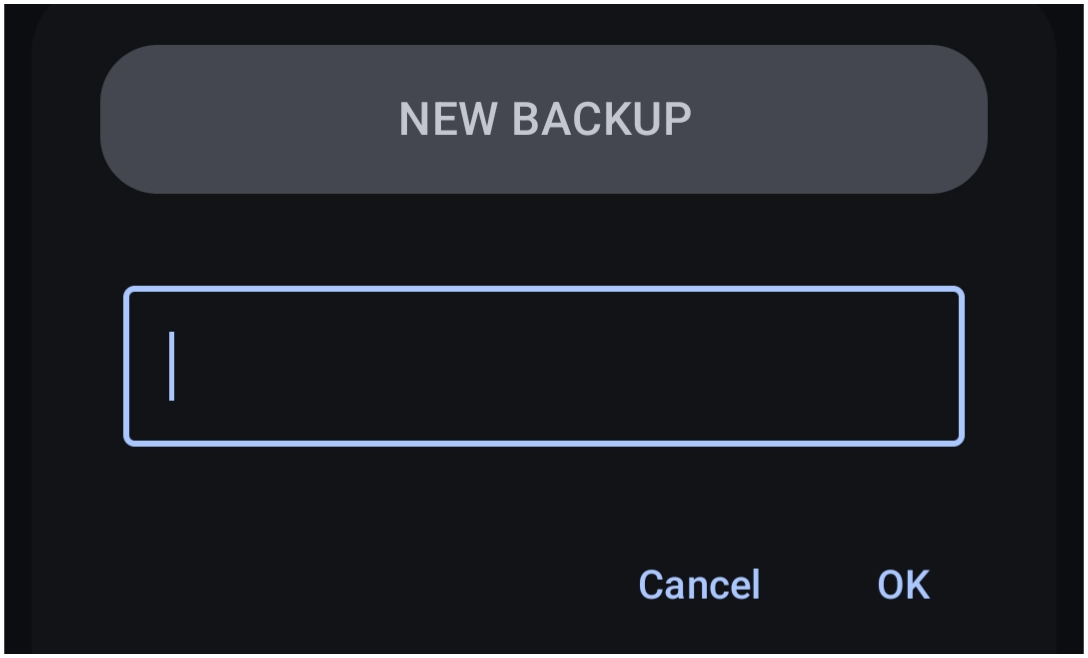
- Add: Opens this dialog to create the backup file name.
- Notification: At the bottom of the screen, the Launcher reminder shows that when uninstalling the app, all backups from this list (Launcher storage area) will also be deleted. This will not occur for any backups located in device storage other than
android/data/com.ss.launcher2and the cloud.
===== Hidden Index Anchors ===== * target_page_1 * target_page_2
For more information on Backups and how it works see here.

Comments & Feedback
Toby Lancer is ready to help! Look for the Quick Help form:
► Desktop: left sidebar located near the bottom for Private to Admin
► Mobile: 3-bar menu at page top.
► Use the Discussion section below to share any experiences and communications with other Total Launcher users.
► Any Registered User can directly update this and any wiki page if desired.
Moderation: To keep the manual clean, all comments are held for appropriateness review. Preview any comment before submitting it. It will not be displayed after submission until it is reviewed. So, please, do not resubmit.
Formatting: If using any code snippets, place them inside code tags (e.g., 'code') using double single quotes (') before and after to keep them readable.
Be Kind: This is a community effort. Please keep feedback constructive and on topic.
~~DISCUSSION~~