Table of Contents
Window - Listing (Portrait)
Dialog selections are discussed below the image. To navigate to an item, select it in the Window Listing (Portrait0 image. If NOT selecting any item and wanting to return to the prior page: swipe right-to-left; use the browser’s ‘back’ arrow; or use the Wiki’s Backlink icon  on the right sidebar (mobile: drop-down dialog at the top of the page).
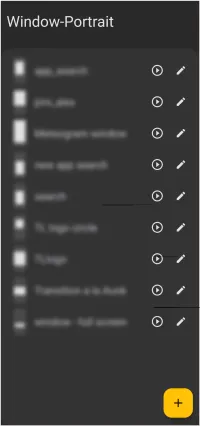
Window - Listing (Portrait) dialog. Make selection above.
- any window title - Contains the title of the user-defined window. The action icon
 (also called a play button) will open its window showing location, dimensions, and any contents saved to it.
 - Edit
 - The pencil is for changing the text (title) of the window.
 - Action - This will open the window directly on the current screen to view the window contents. It does not place the window on the page.
- To delete - Tap and hold any title to highlight it, which changes the add icon to a delete icon. Then tap
Deleteto remove the selected window title from the dialog. - Add
 - This selection will open a Title dialog for a new window. The title is important not only for descriptive purposes for the user, but also for TL in its Launcher action activity, such as • Open window by name • Close the topmost window or folder • Close a window. After “titling” the window and clicking
 OK, the user will be returned to this dialog. - After titling a window, clicking on that title will open the “window placeholder” on the page. For this demo action click here.

Portrait vs Landscape
Total Launcher will recognize differences in screen aspect ratios based on the device's physical screen size and orientation. This wiki page demonstrates the Portrait aspect.
Landscape version of this feature mirrors the 'portrait' version and would be reached only if the app is in landscape orientation and TL is in Edit ON mode.
===== Hidden Index Anchors ===== ui-option-action_tap-selection-window-add_item ui-object_add-window-selection-selected
Comments & Feedback
Toby Lancer is ready to help! Look for the Quick Help form:
► Desktop: left sidebar located near the bottom for Private to Admin
► Mobile: 3-bar menu at page top.
► Use the Discussion section below to share any experiences and communications with other Total Launcher users.
► Any Registered User can directly update this and any wiki page if desired.
Moderation: To keep the manual clean, all comments are held for appropriateness review. Preview any comment before submitting it. It will not be displayed after submission until it is reviewed. So, please, do not resubmit.
Formatting: If using any code snippets, place them inside code tags (e.g., 'code') using double single quotes (') before and after to keep them readable.
Be Kind: This is a community effort. Please keep feedback constructive and on topic.
~~DISCUSSION~~