<!-- googleoff: index -->
⚠️ v4.0 UI Transition Notice - In Process: The release of Total Launcher v4.0 has introduced significant user interface changes. Please note that this page does not yet reflect these updates. The new layout paths, folds, and visual maps are currently being compiled and will be deployed shortly.
<!-- googleon: index -->
Shape - Selection
Dialog selections are discussed below the image. For navigation to an item make a selection in the Shape - Selection image.
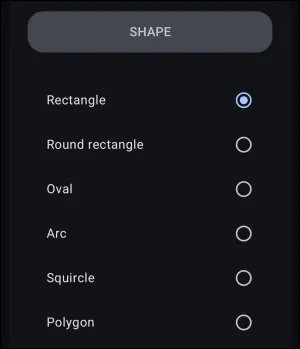
Shape - Selection dialog. Make selection above.
The shapes are described below:
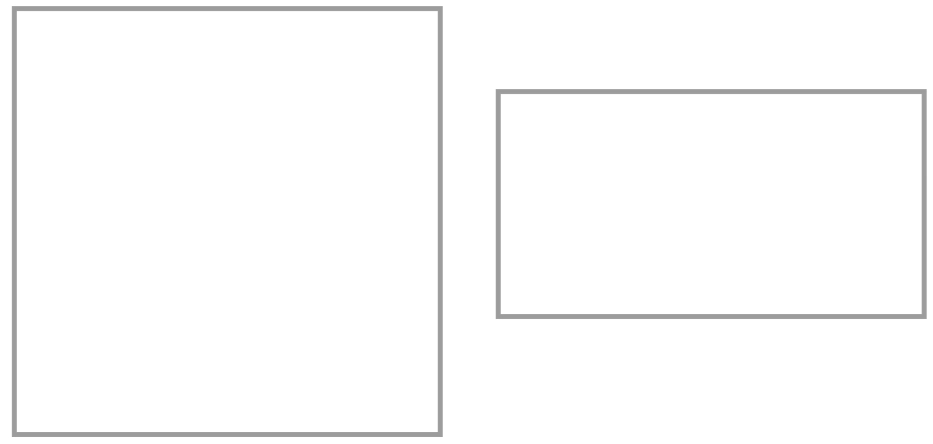
- Rectangle - A polygon that is restricted to a 4-sided shape (example) with 4 right angles, with opposite sides equal and parallel. On the page, these default to a square, but can be adjusted to be a rectangle (horizontal or vertical).
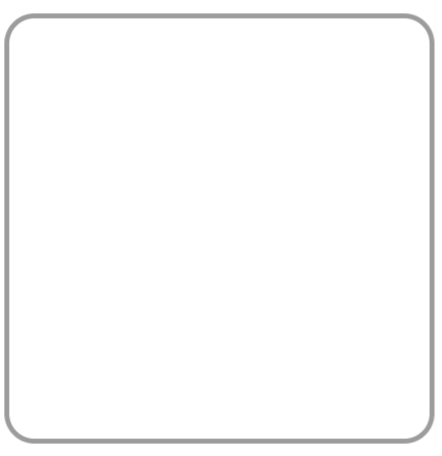
- Round rectangle - A rounded rectangle (example) is a rectangle whose sharp corners are replaced by quarter-circle arcs, creating smooth, curved edges at each vertex. This shape is commonly used in graphic design for buttons, icons, and various user interface elements.
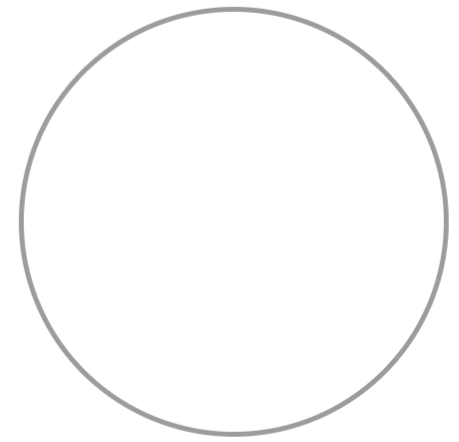
- Oval - An oval (example) , commonly referred to as a circle, is a curved, closed shape that resembles the outline of an egg, typically lacking straight lines or vertices. It is often used to create a smooth, flowing aesthetic in various design contexts.
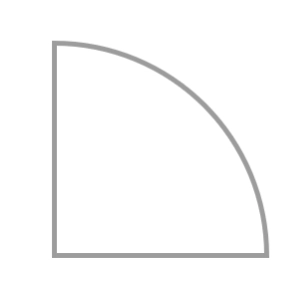
- Arc - An arc (example) is a portion of the circumference of a circle, connecting two points on the circle's boundary.
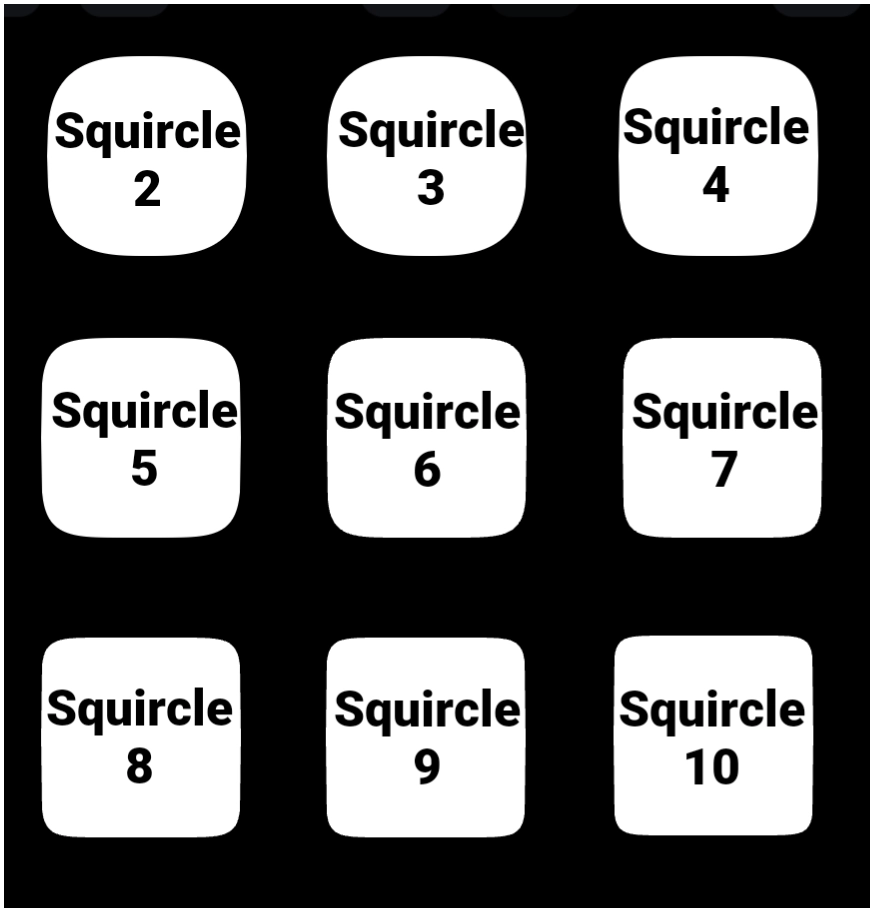
- Squircle - A squircle (example) is a shape that combines characteristics of both a square and a circle, featuring smooth, continuous curves at the corners instead of sharp angles. This design is often used in user interfaces and product designs for a more visually appealing and friendly appearance.
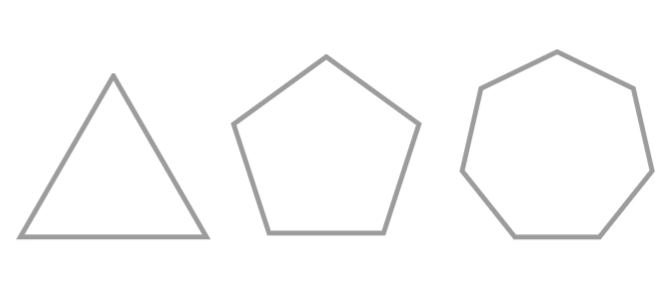
- Polygon - A polygon (example) in design refers to a two-dimensional shape made up of straight line segments that connect to form a closed figure. Common examples include triangles, squares, and hexagons, which are often used in various design applications.
===== Hidden Index Anchors ===== ui-resources-shape-selection-rect ui-resources-shape-selection-rnd_rect ui-resources-shape-selection-oval ui-resources-shape-selection-arc ui-resources-shape-selection-squircle ui-resources-shape-selection-polygon
Comments & Feedback
Toby Lancer is ready to help! Look for the Quick Help form:
► Desktop: left sidebar located near the bottom for Private to Admin
► Mobile: 3-bar menu at page top.
► Use the Discussion section below to share any experiences and communications with other Total Launcher users.
► Any Registered User can directly update this and any wiki page if desired.
Moderation: To keep the manual clean, all comments are held for appropriateness review. Preview any comment before submitting it. It will not be displayed after submission until it is reviewed. So, please, do not resubmit.
Formatting: If using any code snippets, place them inside code tags (e.g., 'code') using double single quotes (') before and after to keep them readable.
Be Kind: This is a community effort. Please keep feedback constructive and on topic.
~~DISCUSSION~~