meta data for this page
How To: Add An Application Shortcut To The Total Launcher Page
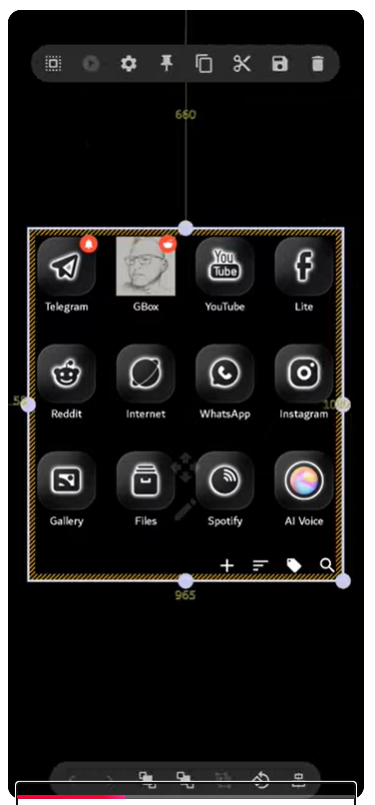
This procedure demonstrates how to add a specific application shortcut to the page, position it, and remove unwanted objects to customize the page layout.
💡 v4 UI Variance Warning:
The video guide to the left utilizes a pre-v4 interface.
Step-by-step instructions are fully updated for v4
with any variances in bolded italics.
Use Quick Help ☛ left sidebar or Menu  icon if needed.
Adding the Application Shortcut
- Enable Edit Mode (if not already active) to allow modification of the page layout
- On the Page Design menu tap the Add icon
 .
.- Select Graphic
- Select Image
- Select Application from the list of available object types.
- Scroll through the installed application list or use the search bar to locate the target application.
- Select the desired application.
- The shortcut icon is placed on the screen, enclosed in a bounding box indicating it is selected.
- Drag the new shortcut to the desired location on the page.
- Optional: Resize the shortcut by dragging the handles located on the corners of the bounding box.

Removing an Existing Object
- Select the object to be removed by tapping and holding it.
- Select the Delete icon
 from the Object Design menu.
- Confirm the action in the Remove selections? dialog.
- The object is removed from the page, leaving the space available for the new shortcut.

You could leave a comment if you were logged in.
Comments & Feedback
Toby Lancer is ready to help! Look for the Quick Help form:
► Desktop: left sidebar located near the bottom for Private to Admin
► Mobile: 3-bar menu at page top.
► Use the Discussion section below to share any experiences and communications with other Total Launcher users.
► Any Registered User can directly update this and any wiki page if desired.
Moderation: To keep the manual clean, all comments are held for appropriateness review. Preview any comment before submitting it. It will not be displayed after submission until it is reviewed. So, please, do not resubmit.
Formatting: If using any code snippets, place them inside code tags (e.g., 'code') using double single quotes (') before and after to keep them readable.
Be Kind: This is a community effort. Please keep feedback constructive and on topic.
~~DISCUSSION~~