meta data for this page
Total Launcher Frosted Glass Icons: Creating Shapes with Transparent Backgrounds
Custom shape containers featuring transparent or semi-translucent frosted glass backgrounds provide a modern aesthetic for Android homescreen themes. Instead of restricting an app icon or widget to a flat, opaque backing, combining custom vector shapes with transparent PNG or WEBP image resources creates reusable glass frames that blend seamlessly into any wallpaper. Mastering this technique allows for the creation of unified icon backings, translucent folder frames, and tactile floating controls directly within the Launcher workspace. The configuration process involves obtaining or creating the transparent graphic asset before importing it into the local resource library.
Create or Obtain the "Invisible" Shape
The procedure to apply the “invisible” image to the shape is shown below. There are 2 sources for that image:
- Create it with an image design application
- a Windows application, GIMP, is available for download from Google Play Store
- -or- use the PNG/WEBP image(s) offered below for download at the bottom of this page.
Whichever route is selected results in a reusable glass container for any icon, shape, or widget!
Import the PNG/WEBP to Resources
Any external image used by Total Launcher must be added to the 'Image Resource' area. If unfamiliar with this, the procedure is here.
Total Launcher Procedure - The Video
▶ Click to Play on YouTube
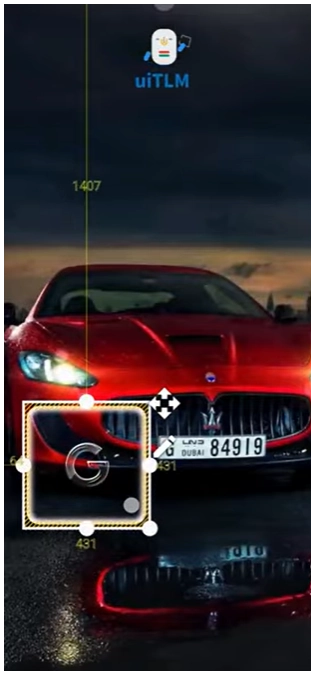
Create the Total Launcher Resource Shape for the Transparent PNG/WEBP
- Place the desired shape on the page:
- In
Edit Onmode, in the top Page Design menu, tap the+icon- Select
Graphic>Image>Default>Shape>Add (+) - In the Add Shape dialog select
Shape>Round rectangleand then re-name theLabelas “frost” - Tap the Option
 icon to open the radius dialog
 - The default setting is 28, which represents Google's current Material rounded corner for icons. Modifications can be made by direct input or using the slider. Leave it at the default setting. Select OK.
- In the Shade Add dialog, where the “frost” shape is now shown, tap “frost” to place it on the page.
- The created shape (white rounded rectangle) is now on the page and selected and can be moved by dragging. Move it to any location.
- In the Object Design menu (top), tap the Option icon to open the shape's Edit dialog.
- Tap
Image>Icon packand select any desired icon
- The shape with the icon is now on the page.
- The video's icon had no background. Other icons may have a colored or shaded background or insets. If so, see the next step to “minimize” that.
- In the Object Design menu, tap Options to open the Option Edit dialog.
- Select
Background, which opens Image Resources. Scroll and select thefrostimage (created in Gimp or Photoshop or downloaded from this page and previously in Image Resources).
- The “frost” is added to the shape's background.
- If the icon is larger than desired, scale it down (or vice versa). It will not affect the size or the shape of the object (frost).
- Tap Options in the Object Design menu and scroll to
Marginsat the bottom. Tap to open its dialog. Here, the margins are increased (interior borders are moved towards the center), which shrinks the icon.- Tap OK and back out of the editing dialog to the page.
- Project completed.

Margin manipulation for an object, called scaling, is helpful. Explore it more fully here.
Image Download
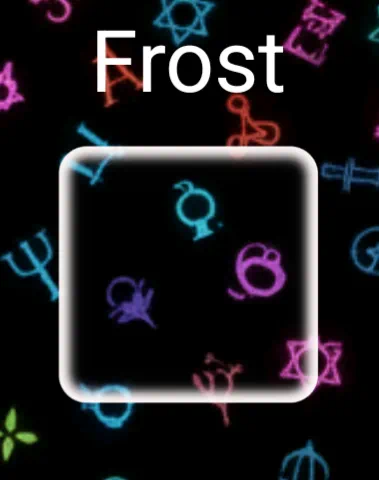
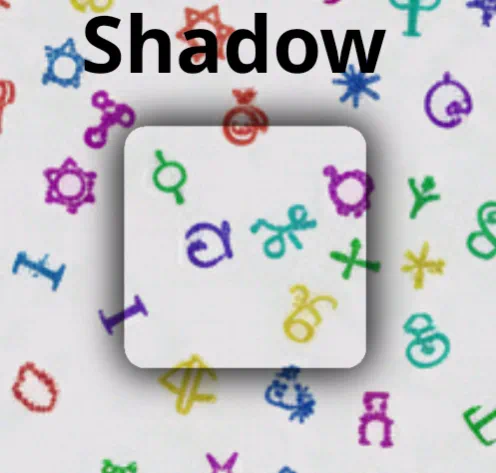
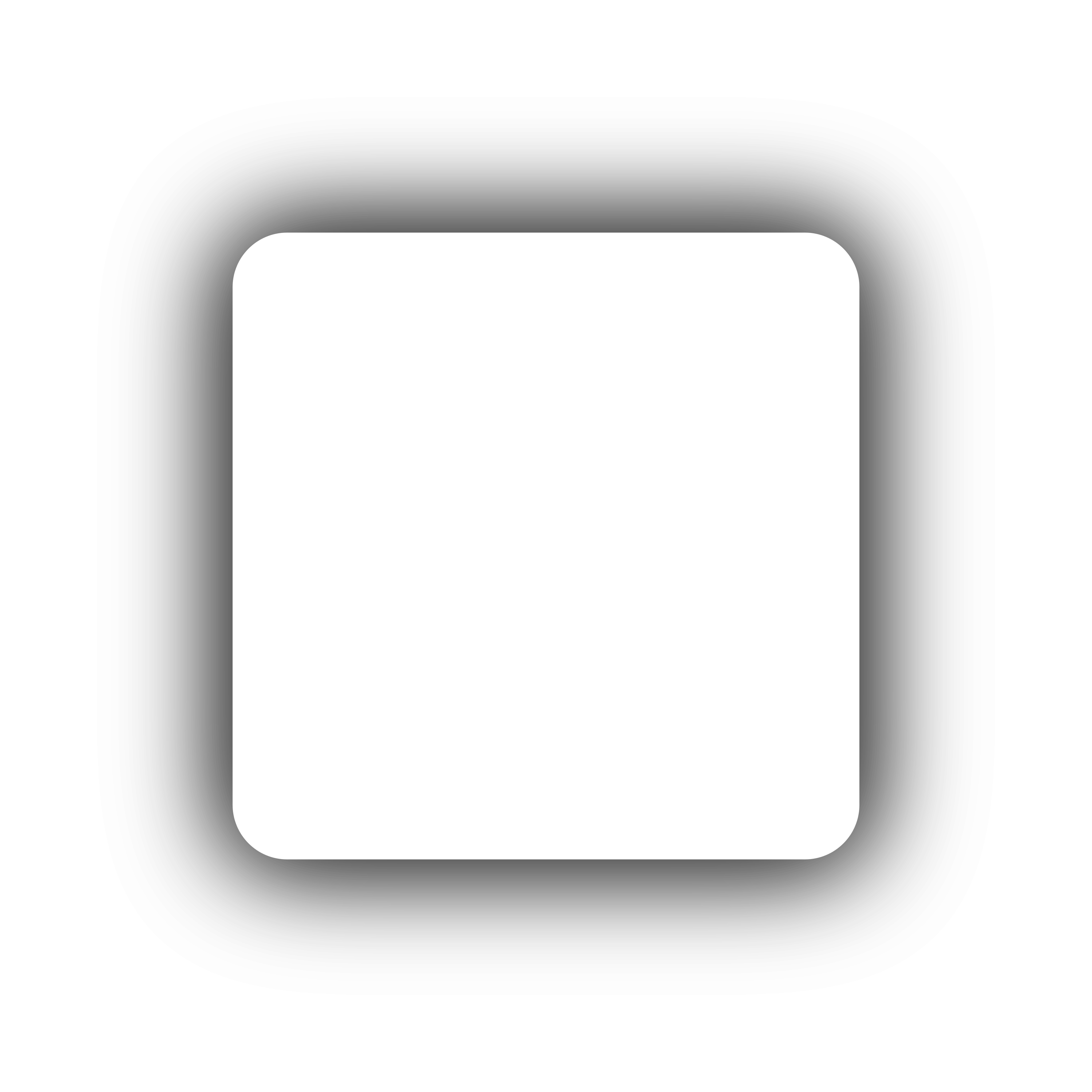
The above procedure creates a shape that places a “clear” image as its background. Either of the images below (Frost or Shadow) could be used on dark-mode or light-mode wallpaper or used as image headers for folders.
| Summary of Marial Design (Material You v3) Standards for Radii Corners | ||
|---|---|---|
| 12 | Medium | cards or grouped lists inside a widget |
| 16 | Large | floating action buttons (FABs): square-ish or smaller widgets |
| 28 or Fully Rounded | Stadium | standard buttons typically ½ the height (e.g., height = 50, radius is 25: pill shaped) |
Comments & Feedback
Toby Lancer is ready to help! Look for the Quick Help form:
► Desktop: left sidebar located near the bottom for Private to Admin
► Mobile: 3-bar menu at page top.
► Use the Discussion section below to share any experiences and communications with other Total Launcher users.
► Any Registered User can directly update this and any wiki page if desired.
Moderation: To keep the manual clean, all comments are held for appropriateness review. Preview any comment before submitting it. It will not be displayed after submission until it is reviewed. So, please, do not resubmit.
Formatting: If using any code snippets, place them inside code tags (e.g., 'code') using double single quotes (') before and after to keep them readable.
Be Kind: This is a community effort. Please keep feedback constructive and on topic.
~~DISCUSSION~~