meta data for this page
How to Add a New Page in Total Launcher: Step-by-Step Guide
Pages function as the primary structural canvases in Total Launcher, serving as the physical boundaries that contain all widgets, graphic objects, and app shortcuts. Expanding a setup across multiple pages reduces visual crowding on the main screen, facilitates clean functional categorization (such as dedicated media or productivity panels), and allows for complex multi-screen custom layouts. Mastering page management, including page creation, custom labeling, and positional swapping, ensures fluid navigation across expansive setups. The configuration workflow begins by entering the visual overview within Edit Mode to generate and position a new page placeholder.
A page (or screen) is what “holds” the setup design and its objects. Using multiple pages can provide:
- less screen crowding versus a single page
- more screens for more setup designs
- categorizing objects (such as widgets)
- more customizing variations or quasi-setups
While Total Launcher can add multiple pages by scrolling left or right, the maximum number of pages has not been documented. If known, please provide input.
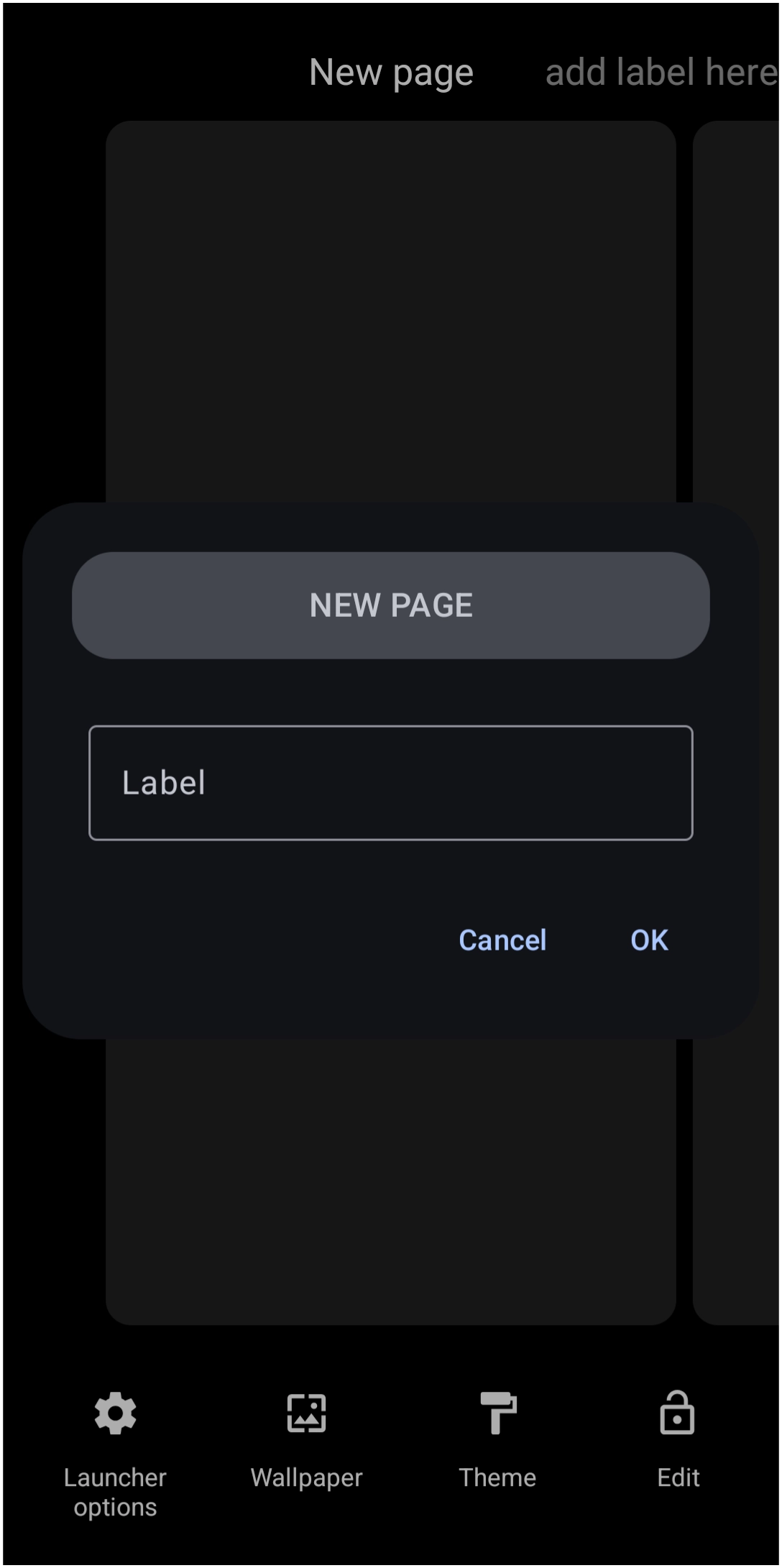
☛To create a new page for a user setup:
• Enter Edit Mode. 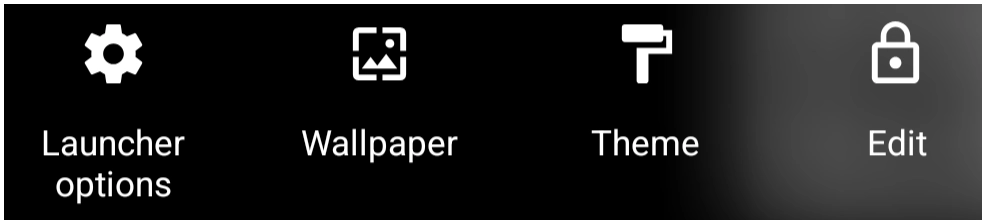
• Tap the Edit Off icon  to fully enter Edit On mode
• The screen will now show the page or pages currently existing in the Launcher's setup
• By default, Edit Mode opens with the current page centered. The New page is always located to the left of the designated 'Home Page'
• If in a 1-page setup (or in a multiple-page setup, scroll to the 1st page) and in the top menu, locate the New page label  to reveal a new placeholder for the page.
• Tap that area to show a new page placeholder, then tap the + to open the New Page dialog. If desired, enter the new title (page name) 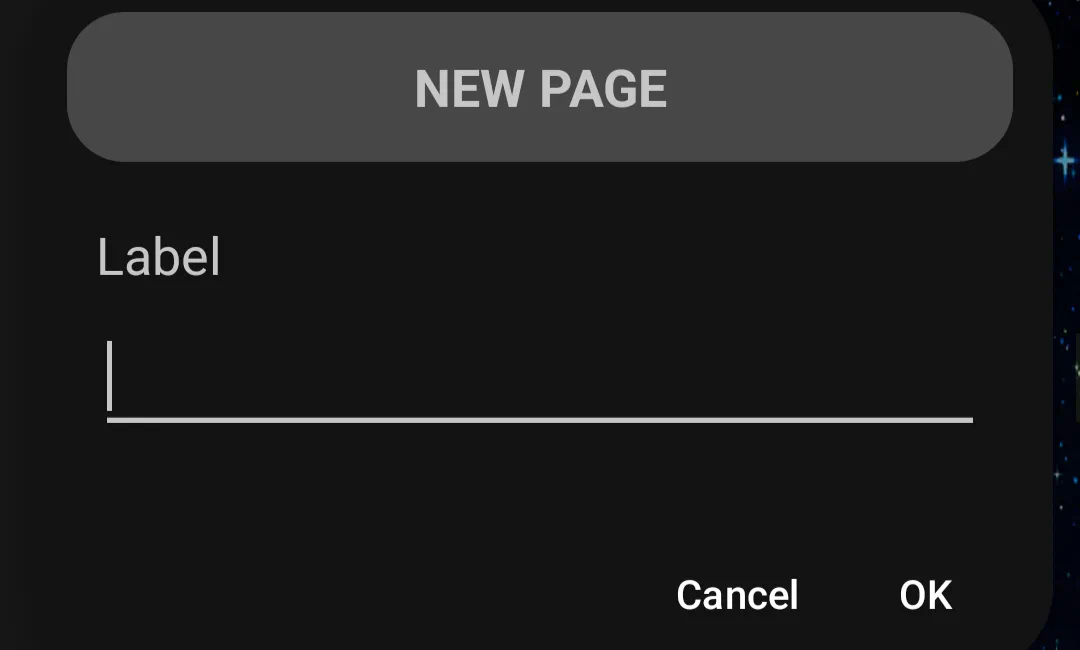
• Naming a page is very useful when using Launcher action navigation for “Go to”
• Tap OK
• The new page is now in the screen center, placed to the left of the 'Home page'
• If that is not the desired location of the new page, tap the Page swap icon  to relocate it.
• Once in the correct location, tap the page. It is now full screen in Edit On mode. Scroll left/right to view other screens, if desired.
Comments & Feedback
Toby Lancer is ready to help! Look for the Quick Help form:
► Desktop: left sidebar located near the bottom for Private to Admin
► Mobile: 3-bar menu at page top.
► Use the Discussion section below to share any experiences and communications with other Total Launcher users.
► Any Registered User can directly update this and any wiki page if desired.
Moderation: To keep the manual clean, all comments are held for appropriateness review. Preview any comment before submitting it. It will not be displayed after submission until it is reviewed. So, please, do not resubmit.
Formatting: If using any code snippets, place them inside code tags (e.g., 'code') using double single quotes (') before and after to keep them readable.
Be Kind: This is a community effort. Please keep feedback constructive and on topic.
~~DISCUSSION~~