meta data for this page
Shape - Polygon Option
Dialog selections are discussed below the image. To navigate to an item, select it in the Shape - Polygon Option image. If NOT selecting any item and wanting to return to the prior page: swipe right-to-left; use the browser’s ‘back’ arrow; or use the Wiki’s Backlink icon  on the right sidebar (mobile: drop-down dialog at the top of the page).
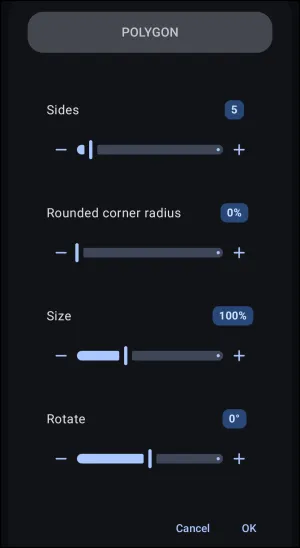
This demo dialog shows the following elements, which are navigable:
- Cancel - Discards any modifications made to the polygon properties and returns to the previous menu without saving changes.
- OK - Confirms the configured polygon parameters and saves the custom shape resource to the shape palette.
Other elements in this image are discussed below:
- Sides - Displays the current number of geometric edges forming the polygon.
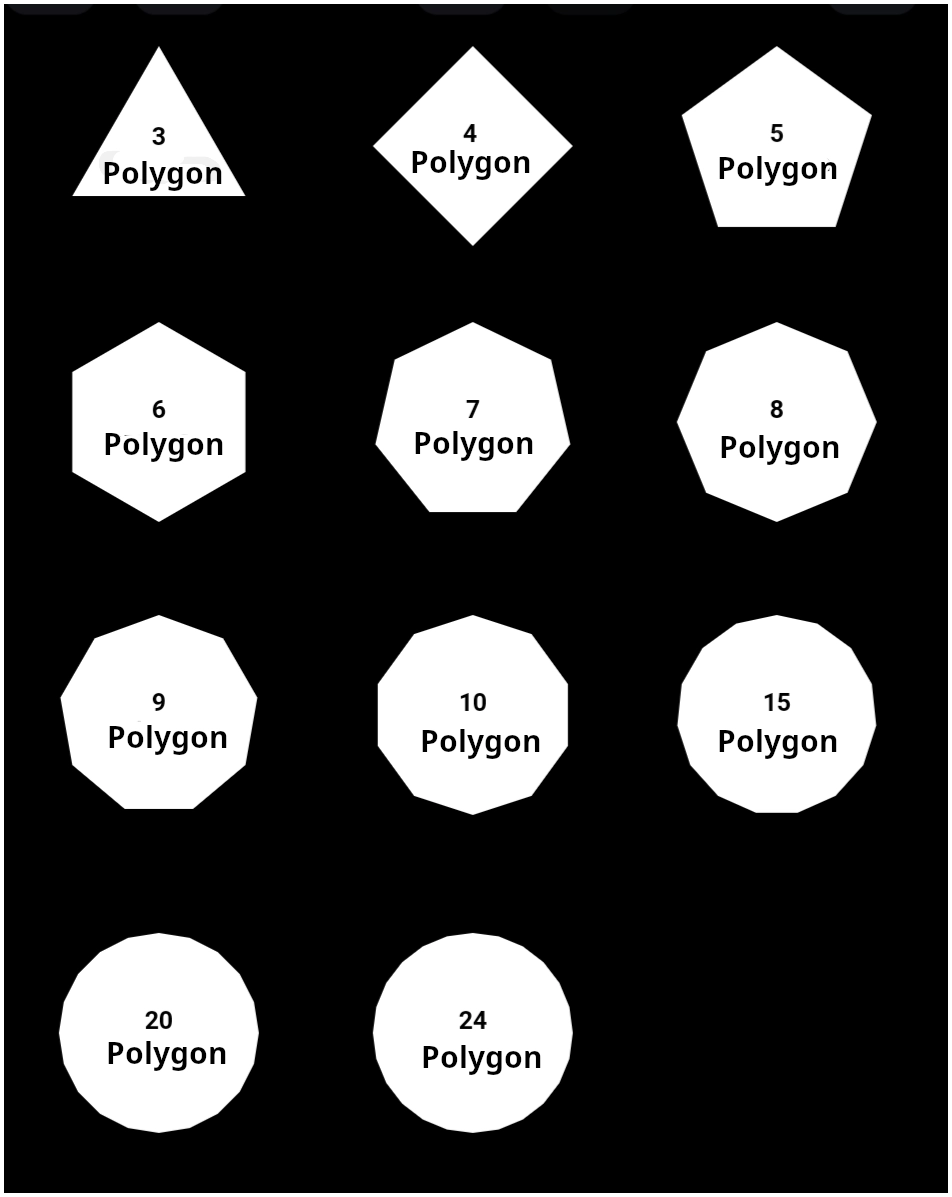
- Sides Pill Badge (5) - Selecting this pill badge opens a numeric input prompt to enter a specific side count directly. The number of sides ranges from
3to24.- See the examples shown here
- Sides Decrease (-) Button - Decreases side count by single-unit increments toward the minimum value of a triangle (
3). - Sides Slider - Dynamically adjusts the number of edges across the available range by dragging the slider indicator left or right.
- Sides Increase (+) Button - Increases the side count by single-unit increments to generate multi-sided polygons.
- Rounded corner radius - Displays the active corner roundness percentage.
- Rounded corner pill badge - Selecting this badge opens a numeric input prompt to specify an exact rounding ratio directly.
- Rounded corner radius Decrease (-) Button - Decreases the corner radius in single-unit increments to sharpen polygon vertices.
- Rounded corner radius Slider - Dynamically adjusts corner roundness between sharp vertices (
0%) and maximum corner smoothing by dragging the slider indicator. - Rounded corner radius Increase (+) Button - Increases the corner radius in single-unit increments to soften and round the vertex angles.
- Size - Displays the relative scaling percentage of the polygon within its assigned bounding container.
- Size Value (100%) - Selecting this badge opens a numeric input prompt to enter an exact scale percentage directly.
- Size Decrease (-) Button - Decreases the relative shape size in single-unit increments.
- Size Slider - Adjusts the scaling ratio of the polygon within its boundary frame by dragging the slider indicator left or right.
- Size Increase (+) Button - Increases the relative shape size in single-unit increments.
- Rotate - Displays the current rotational orientation angle in degrees.
- Rotate Value (100%) - Selecting this badge opens a numeric input prompt to specify an exact rotation angle.
- Rotate Decrease (-) Button - Rotates the polygon counterclockwise in single-degree increments.
- Rotate Slider - Dynamically rotates the shape around its center anchor point by dragging the slider indicator across the degree range.
- Rotate Increase (+) Button - Rotates the polygon clockwise in single-degree increments.
You could leave a comment if you were logged in.