meta data for this page
<!-- googleoff: index -->
⚠️ v4.0 UI Transition Notice - In Process: The release of Total Launcher v4.0 has introduced significant user interface changes. Please note that this page does not yet reflect these updates. The new layout paths, folds, and visual maps are currently being compiled and will be deployed shortly.
<!-- googleon: index -->
Object - Unselected
Dialog selections are discussed below the image. To navigate to an item, select it in the Object Unselected image. If NOT selecting any item and wanting to return to the prior page: swipe right-to-left; use the browser’s ‘back’ arrow; or use the Wiki’s Backlink icon  on the right sidebar (mobile: drop-down dialog at the top of the page).
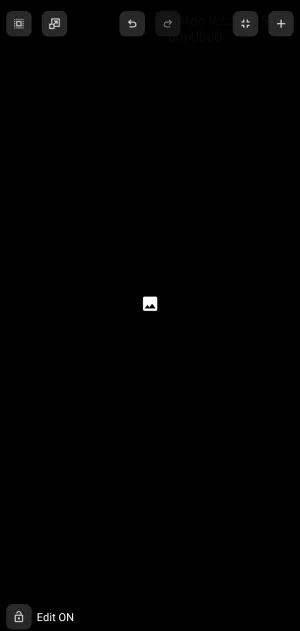
Object - Unselected dialog. Make selection above.
This is the device screen (no wallpaper or image) after entering Edit On, further described here if necessary. The significant elements on this page are part of the “Page Design Menu” that has bypassed the Main menu landing:
- Select:
 - [Not selectable in this demo] Selects and highlights an object. Can be dragged by a stylus, mouse, or digit:
- Right-to-Left - selects objects partially within the boundary and objects fully with the boundary
- Left-to-Right - selects objects fully within the boundary only

- Scale or Move:
 - [Not selectable in this demo] Allows for the vertical or horizontal movement and scaling of all objects simultaneously. If an object is “pinned” to the page this dialog will require the action to specify
 Objects on this pageorPinned objects, making the action independent.


- Undo or Redo:
 - [Not selectable in this demo] Reverts the page to its previous object state (not individual editing steps of an object)
- Page margins:
 - allows adjustment of the margins of the current screen.

- Object add:
 - opens the Object Add menu for selecting layouts, widgets, and graphics for object creation.

- Edit On:
 - This icon shows it's current state. Tapping the icon would cause Edit mode to terminate, and the user would be returned to the previously edited Launcher page.
- For purposes of this interactive demo, the Edit Off mode is shown here.
===== Hidden Index Anchors ===== ui-edit_on-design_menu-page_margins ui-object_add-selection ui-edit_off_blank_page_return_to_edit_on_or_toc ui-object_add-image-selection-selected