meta data for this page
Option - Action Selection
Dialog selections discussed below the image. For navigation to an item, make a selection in the Option - Action Selection image.
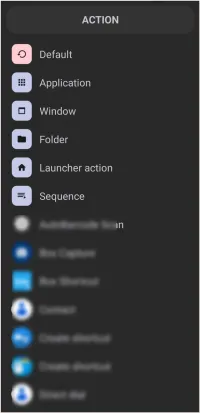
Action selection dialog elements are reviewed below. To navigate, make a selection above.
- Default - This adds no action. It simply returns the user to the previous page (Action)
- Application - This causes the action result to be an application installed on the user's device, as shown in the dialog opened in the next screen
- Window - This is best described as a pop-up floating page or container which can be customized similar to pages themselves. When using a window in TL, give it a meaningful name (as short as possible) to differentiate it from other windows. TL will remember its name when the user wants to call it with an action.
- Folder - Think of the everyday concept of a file folder organizing documents or other objects. In TL, folders are user-created (see <Folder section>) and can hold applications, shortcuts, and other objects. This will open a dialog showing any user-created folder for selection to be the origin object's action.
- Launcher action - This is the central location of TL's built-in actions … over 50 such actions. Selection here will display the complete listing in the dialog, which the user can then attach to the origin object's action.
- Sequence - Sequences structure multiple actions to take place in a row (sequential), such as opening multiple windows, turning on wifi, and connecting to a website (URL) … even set a user-defined “wait” time within the sequence. This displays a dialog listing the user-created sequences for the desired action to use.
- Others - Blurred in this image are actions directly associated and available from any applications installed on the user's device. Use these as you would TL's built-in ones.
To navigate from this screen, the Android user would swipe. Here in this demo, look for the back button in the upper left corner of the screen
===== Hidden Index Anchors ===== ui-graphic-selection-image-selection ui-option-action_tap-selection-window ui-folder-selection ui-option-action_tap-selection-launcher_action ui-option-action_tap-selection-sequence ui-option-action_tap-selection-application
You could leave a comment if you were logged in.
Comments & Feedback
Toby Lancer is ready to help! Look for the Quick Help form:
► Desktop: left sidebar located near the bottom for Private to Admin
► Mobile: 3-bar menu at page top.
► Use the Discussion section below to share any experiences and communications with other Total Launcher users.
► Any Registered User can directly update this and any wiki page if desired.
Moderation: To keep the manual clean, all comments are held for appropriateness review. Preview any comment before submitting it. It will not be displayed after submission until it is reviewed. So, please, do not resubmit.
Formatting: If using any code snippets, place them inside code tags (e.g., 'code') using double single quotes (') before and after to keep them readable.
Be Kind: This is a community effort. Please keep feedback constructive and on topic.
~~DISCUSSION~~