meta data for this page
Launcher Options: UI & Animation - Sliding Drawer
Dialog selections are discussed below the Launcher Options: UI & Animation - Sliding Drawer image. Clicking a selection will navigate to the topic discussion. If NOT selecting any item and wanting to return to the prior page: swipe right-to-left; use the browser’s ‘back’ arrow, or use the Wiki’s Backlink  icon on the right sidebar (mobile: drop-down dialog at the top of the page).
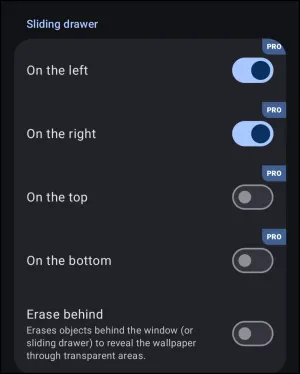
Launcher Options: UI & Animation - Sliding Drawer dialog. Make a selection above to view a demo of the effect.
Advantages
The Sliding Drawer defaults to an empty hidden container where user-selected objects (such as apps, widgets, folders) can be added. It offers these functional advantages:
- Location - hides and is exposed from the 4 edges: top, right, bottom, and left
- Built-in - These are turned on by checking them in the dialog shown above and accessed via
Main menu>Launcher options>UI & Animations>Sliding drawers
- Activated by a gesture: swipe in the opposite direction of the drawer location
Disadvantages
- Memory Usage - It has been cited in a Telegram post (but not found in official Total Launcher documentation) that sliding drawers use more device memory, which could be of concern. The alternative would be to use a
window, which is cited as using system cache.Windowsare known to have a slightly delayed activation response.
The Sliding Drawer can be set as the Launcher's App Drawer, discussed in detail here, which is a free-standing widget.
Issues & Resolutions
The Slide Drawer can have issues as noted below:
- Conflict with Android - The from the edge gesture to activate the sliding drawer can be intercepted by Android's built-in gesture. Frequently, the
On the topsetting for the sliding drawer will result in Android dropping down theNotification shade. Hacks to give the sliding drawer a priority edge are:- Gesture ON - In the default setting (OFF), TL gestures are not activated. To turn this switch on
Edit On>Launcher options>Keys & Gestures>Advanced>Gesture animation
- Drawer handle - TL's widget provides an activator object which can be set for any of the 4 sliding drawer locations.
- The drawer handle widget is located at
Edit ON>Add>Widget>Built-in>Drawer handle - See a demo here with the handles at at the top-left (
On the top), then top-right (On the right), bottom-right (On the bottom), and then bottom-left (On the left).
- Hidden Object - Similar to the Drawer Handle widget, a user can create an object, adjust its size and location as desired, set the object's color to transparency (ARGB
00000000), and then set the object'sTap on actionto open the desired drawer- In Edit ON mode and Object Design menu visible,
Action>Tap[or the other 4 choices] >Launcher action>Open the <select> drawer.

Demos
The demos shown are for visualization purposes only. The UI & Animation dialog only provides for a selection and not a demo or sliding drawer actually opening. Additional options for the sliding drawer are available by editing the sliding drawer:
Edit on> (open the drawer, tap/hold edge)- Drawer boundaries are highlighted; tap the edit
 icon in the Object Design menu (top), then tap the option
  icon in the lower right corner
 - “On the …” option dialog opens
- To navigate to the section fully describing this process, click here.

On the left
- With a see-through background, see demo here .

On the right
- With a see-through background, see demo here .

On the top
- With a see-through background, see demo here .

On the bottom
- With a see-through background, see demo here .

Erase Background
- The default action of an opening sliding drawer is to open on top of objects with those objects still being visible. By checking this option in
Main menu>Launcher options>UI & Animations>Sliding drawers>Erase background, the underlying objects will be erased.- See demo here .
Comments & Feedback
Toby Lancer is ready to help! Look for the Quick Help form:
► Desktop: left sidebar located near the bottom for Private to Admin
► Mobile: 3-bar menu at page top.
► Use the Discussion section below to share any experiences and communications with other Total Launcher users.
► Any Registered User can directly update this and any wiki page if desired.
Moderation: To keep the manual clean, all comments are held for appropriateness review. Preview any comment before submitting it. It will not be displayed after submission until it is reviewed. So, please, do not resubmit.
Formatting: If using any code snippets, place them inside code tags (e.g., 'code') using double single quotes (') before and after to keep them readable.
Be Kind: This is a community effort. Please keep feedback constructive and on topic.
~~DISCUSSION~~