meta data for this page
Folder Options
Dialog selections are discussed below the image. For navigation to an item, make a selection in the Folder Options image.
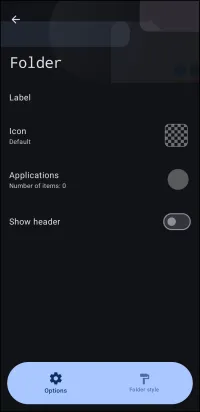
Folder Options dialog. Make selection above.
This page shows Options for folders:
- Label - The title which will be placed in the folder's header and be shown below the folder in any App drawer. It will not appear if the folder is represented by a Window or Image on the Home Page.
- Icon - While the launcher presents the selection of an icon pack/icon, the selection does not register (perhaps a programming oversight) to appear on the folder. Only if the option
Show headeris activated andHeader imageis defined will thatHeader imageappear when the folder is opened.
Toby says  It Is Possible To Assign An Icon To A Folder
It is possible through another door. After creating the folder and in Edit ON mode, quickly tap the folder to reveal the Object Design menu's Edit icon  in the upper menu bar. This will open the 'Options' dialog, which was available when the folder was first created. If
 Icon is now selected, it will be applied. An example to show a folder with an icon and then opened with a label with a shape (in this case an embossed silver bar) is shown here.

- Applications - to select an application(s) to be included in the folder's contents
- Show Header - default is off. Tapping the radio button will turn on the bottom of the dialog to expose modifications to the header content (the top of the folder when opened), such as image, label, and color.
- Cancel - returns to the previous page
- OK - returns to the previous page
- Folder Style - when designing a new folder, the column/row count, width/height, sort order, and animations/sound, closure, background, margins, icons, label, colors, and thumbnails/masks
<wrap hide>
Hidden Index Anchors
ui-option-action_tap ui-folder-options-label ui-folder-options-icon ui-folder-options-application ui-folder-options-show_header_on ui-folder-options-folder_style
Comments & Feedback
Toby Lancer is ready to help! Look for the Quick Help form:
► Desktop: left sidebar located near the bottom for Private to Admin
► Mobile: 3-bar menu at page top.
► Use the Discussion section below to share any experiences and communications with other Total Launcher users.
► Any Registered User can directly update this and any wiki page if desired.
Moderation: To keep the manual clean, all comments are held for appropriateness review. Preview any comment before submitting it. It will not be displayed after submission until it is reviewed. So, please, do not resubmit.
Formatting: If using any code snippets, place them inside code tags (e.g., 'code') using double single quotes (') before and after to keep them readable.
Be Kind: This is a community effort. Please keep feedback constructive and on topic.
~~DISCUSSION~~